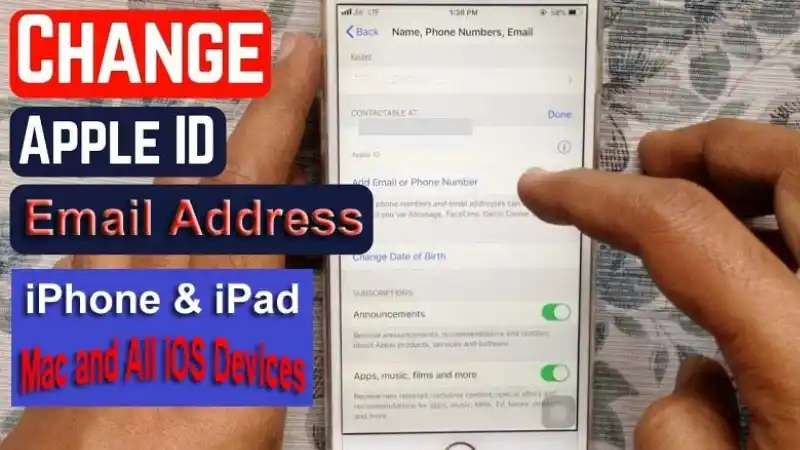
Whether you are going to lose access to your using current email id otherwise may be another reason to change your Apple ID, and then doesn’t worry! Because here we will guide you about how to change Apple ID email on iPhone, iPad, Mac and All iOS devices with ease.
If you are losing access to an email address that are currently using with your Apple Id, then we suggest you to change your Apple ID to get protection your account.
Also Read: How to Reactivate Snapchat Account on iPhone & Android? Quick Tricks
With using changed email id, you can sign in your iOS device and other Apple services such as iCloud, iTune and App Store without losing your sensitive data.
How to Change Apple ID Email Address
In this section, you will check out how to change your Apple ID email address on iPhone, iPad and Mac by using simplest steps; below shown all:
- How to Change Apple ID Email on iPhone and iPad
- How to Change Apple ID Email on Mac, All iOS Device or Window PC
- What to Do After Changing Your Apple ID
- FAQ (Frequently Asked Questions)
- Why Can’t I Change My Apple ID to Another Email?
- Can I Use a Gmail for my Apple ID?
- How Do i Change My Apple ID Email Address Without Losing Everything?
Let’s Get Starting!
How to Change Your Apple ID Email on iPhone and iPad?
With following few simple steps, you can change Apple ID email address on your iPhone; below shown all:
Important!! Before going to ahead, you must be get backup of your iPhone’s data, because in this process may be erase your sensitive data.
- Firstly you have to launch <Settings> app on your iPhone or iPad
- On next screen, press on your <Apple ID> that locating top of screen.

- Further, click on <Name, Phone Numbers, Email> section

- On resulting screen, press on <Edit> option that locating right side of ‘REACHABLE AT’.

- Then press on <Red Minus Icon (-)>, showing at left side of your name.

- On next screen, click on <Delete> tab.

- This will open new pop-up, tap on <Continue> to confirm, if you wish to delete your current email address and link a new one.
- Further you have to put your <New Email ID> and press on <Next> option that locating at top right corner.

- Now Apple will push a ‘Verification Code’ into your Email ID’s inbox, grab this code and then insert ‘Verification Code’ on the desired screen.
Once completed this entire process, Apple’s new email address has been changed into your iPhone and iPad.
How to Change Apple ID Email on Mac, All iOS Device or Window PC?
Here we will talk about all possible stuffs to change Apple ID email on your Mac and All iOS device or Window Pc as well; below you can read;
Also Read: How to Enable Dark Mode on Snapchat for iPhone & Android? Easily!
Important!! Apple allows you only to change Apple IDs which are non-Apple email addresses like as
@yahoo.com, @hotmail.com, @Gmail, or @reddif.com. But Apple deny to permission going to change those email address which used to ending with @icloud.com, @me.com, or @mac.com.
- Firstly you have to need open your web browser on your device and visit https://appleid.apple.com website
- Next put your existed Apple ID and Password for getting to sign in your Apple account.
- Once logged in your Apple account, click on <Sign-In and Security > locating left side pane. This will open many tabs on your screen, and then select <Apple ID> tab.

- Further, put your new email address in field box <Change your Apple ID>. If you prompt that email id is not available, it means this same email id used by another person.

- Now you have to use another email address otherwise make new Apple ID, and then this new email is entered into <Change your Apple ID> box, hit on <Change Apple ID> button.
- On next page, enter a ‘Verification code’ that was pushed into your email address’s inbox, read it and put into desired bland boxes.
- Once completed this process, you have been successfully changed your Apple ID email.
Note: Apple doesn’t allow user to change an Apple ID within 30 days of the last change.
What to Do After Changing Your Apple ID
After getting to change your email id that is connected to your Apple ID, you should be going to update your log in information along with all Apple services, which you are adopting.
Also Read: How to Save Snapchat Videos on iPhone/ Android? Pretty Simple!
So you have to need log in iCloud, iMessage, iTune, App Store as well as other Apple services along with your new created Apple ID email id and password.
If you are already log in with any old Apple ID, then you are going to sign out and once again sign in your new created Apple ID email id and password.
FAQs (Frequently Asked Questions)
Why Can’t I Change My Apple ID to Another Email?
Sorry, currently you haven’t any way to change an Apple ID’s name and primary email address from a third party email address to an iCloud email address, because same iCloud email id that is already linked along with an alias for that Apple ID.
Can I Use a Gmail for my Apple ID?
Of course, Yes! Apple allows you permission to change an existed Apple Id to another such as @hotmail.com, @gmail.com, or @yahoo.com. But if you are using few emails like as ‘@icloud.com, @mac.com or @me.com address’, then you cannot change them to another.
How Do i Change My Apple ID Email Address Without Losing Everything?
Yes, defiantly you can change your apple ID email without losing anything. But make ensure, you have to need to perform few necessary tasks, which are mentioned all above ‘What to Do After Changing Your Apple ID‘ section.
The Bottom Lines
Now I hope that you have been learnt about all possible stuffs about how to change Apple ID email on iPhone, iPad, Mac and all iOS device.
Also Read: How to Update Snapchat on iPhone and Android? Get Upgrade Snapchat!
If you feel that this article is most useful for you then please share it along with your friends, families and relatives over social media like as FB, Twitter, Linked, Instagram and more!
Have a Nice Day!!