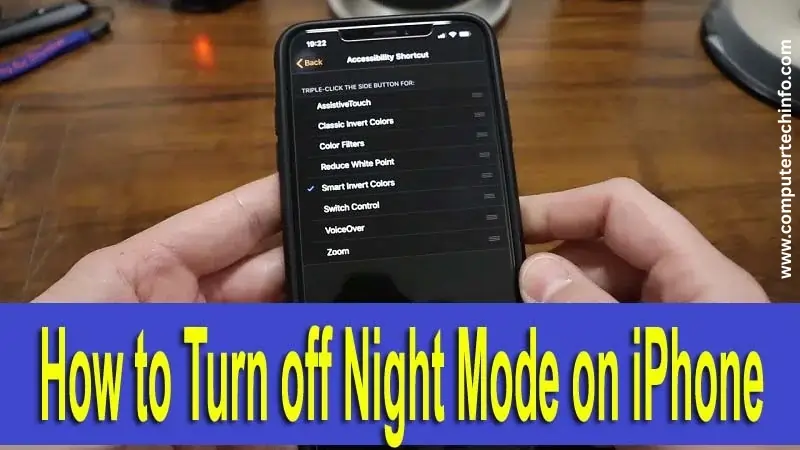
If you are getting to feel bad with your iPhone with being enabling night mode on iPhone Camera even when you don’t wish longer to use it, then here we will cover how to turn off Night Mode on iPhone.
Apple released Night Mode while launching the iPhone 11 series in 2019. We all aware about that whenever we launch Camera app on our iPhone 11 or above to shot a picture in low or dim light, it gets turn on the Night Mode.
In iPhone 11, 12, and 13 series, it is not possible to switch off Night Mode automatically and stays off, it takes turned on Night Mode after taking individual shot.
But with iPhone 15, you can enable Night Mode permanently until you get disable Night Mode. Further this feature gets take automatically with launching iPhone 15 senses low condition and adjusts things accordingly; main objective is to provide you best output.
Also Read: How to Turn Off Dark Mode on iPhone and iPad? 4 Effective Ways
How to Turn Off Night Mode on iPhone Camera
In this section, we will guide you about how to turn off Night Mode on iPhone {updates iOS 11, 12, 13 and 15} with using effective methods; below mentioned all:
Let’s Start!!
How to Turn off Night Mode on iPhone 15
Before going to ahead, make ensure that you’ve updated your iPhone to iOS 15, as this feature is added to shift off Night Mode for Camera app in your iPhone.
Here, we will guide you about how to disable Night Mode on iPhone Camera Automatically, keep stay off and enable night mode as manually.
Disable Night Mode Manually on iPhone Camera for Taking Individual Shot
- Firstly you have to need open <Camera app> on your iPhone.

- Further press the <Night Mode> icon that appears at the top left corner.

- You can control the slider of <Night Mode> that will show up above capture button, and get to turn slider left to disable Night Mode.

Disable Night Mode on iPhone Camera Automatically, Keep Stay off
We can keep save this action as permanently so that Night Mode doesn’t need to disable on every time while opening your iPhone’s camera; Here’s how:`
Also Read: How to Block Emails on iPhone & iPad in Gmail, iCloud, & Outlook
- Firstly you have to open <Settings app> on iPhone, then this will open drop-down menu.
- Next press on <Camera> option, then again you will see context menu.

- And further press on <Preserve Settings> and this will appear few options into context menu.

- Now you have to toggle to shift off Night Mode on your iPhone 15.

Note: Once disabled Night Mode on iPhone 15, it would not get turn on Night Mode automatically. If you want to go back with enable Night Mode then you have to go manually Camera Settings in your iPhone.
How to Enable or Disable Night Mode in Camera On iPhone (11 , 12 and 13)
By default Night Mode enabled, if you have to need to disable Night Mode in Camera app on your iPhone, then you can follow few steps. Here, we will guide you about how you can use Night Mode on iPhone 11, 12 and 13.
Also Read: How to Create A Contact Group on iPhone and iPad? Use 4 Easier Ways
- Firstly launch Camera app on your iPhone, then you will see moon icon at the top left corner.

- If this icon is grayed out that means it is ready to use, but not get to auto-enabled.
- But, if moon icon is viewing as yellow color that means Night Mode is auto turned on.

- Next you can adjust exposure time by pressing moon icon manually.
Important!! Gray or Yellow moon icon will only visible, if camera grabs low or medium light in the surrounding environment. Keep in mind; you haven’t any methods to enable it, if it is not able to pick up low light.
- Yellow means Night Mode is auto-enable to take shot.
- Gray means that it is ready to accessible as manually, but not enable automatically.